
You open your browser expecting Google, but a news feed, blank page, work portal, or recently restored tabs appears instead. You click the house icon, and something different loads again. Nothing is broken. The browser is following separate settings that many “custom home page Google” guides treat as if they were the same thing.
A reliable setup starts by deciding where you want Google to appear: when the browser opens, when you click Home, when you open a new tab, or in all three places. The clicks vary between Chrome, Firefox, Edge, Safari, Android, and iPhone, so choosing the right setting matters more than copying a single URL.
Table of Contents
- Why Your Browser Does Not Open Google Automatically
- Understanding Home Button Startup Page and New Tab Differences
- How to Set a Custom Home Page Google on Desktop Browsers
- Customizing Google on Mobile and New Tab Pages
- Tips to Make Your Custom Google Home Page More Useful
- Troubleshooting Common Problems and Final Checklist
Why Your Browser Does Not Open Google Automatically
Browsers don't generally assume that every person wants the same starting page. Some users want recently opened work tabs, others want a blank workspace, a company dashboard, or a browser's built-in New Tab page. Your default search engine is also separate from your homepage. You can search with Google from the address bar while the browser opens to another website.
That distinction explains a common experience. You type a search into Chrome's address bar and get Google results, so you assume Google is already your homepage. The next time you launch Chrome, however, the browser may restore previous tabs or open the page selected under startup settings.
Google itself has changed shape as a starting page over time. Its personalized homepage launched in May 2005, became iGoogle in 2007, reached 7.1 million users by February 2007, and expanded to 42 localized languages and more than 70 country domains by October 17, 2007, as documented in this history of iGoogle's development. Google later said that 20% of homepage visits used iGoogle by April 2008, before retiring the service on November 1, 2013.
Today, “custom home page Google” usually means one of three practical setups:
- Google at startup, so it appears when you launch the browser.
- Google on the Home button, so the house icon takes you there.
- Google for New Tab, so every new tab opens Google rather than the browser's default dashboard.
You can use the same Google URL for all three, but you don't have to. A useful setup might open Google at startup, keep the browser's New Tab page for shortcuts, and reserve the Home button for a regional Google domain. The instructions below help you choose deliberately instead of changing a setting and wondering why nothing happened.
Understanding Home Button Startup Page and New Tab Differences
The three surfaces look similar because they can all display a webpage, but they respond to different actions. Startup pages control what appears when the browser launches. The Home button responds to a click. A New Tab is created each time you open a fresh tab, usually with a browser-designed page rather than a normal website.
Google's own homepage and browser settings guidance separates these choices. That matters because changing the Home button won't necessarily change startup behavior, and neither setting normally controls New Tab pages.
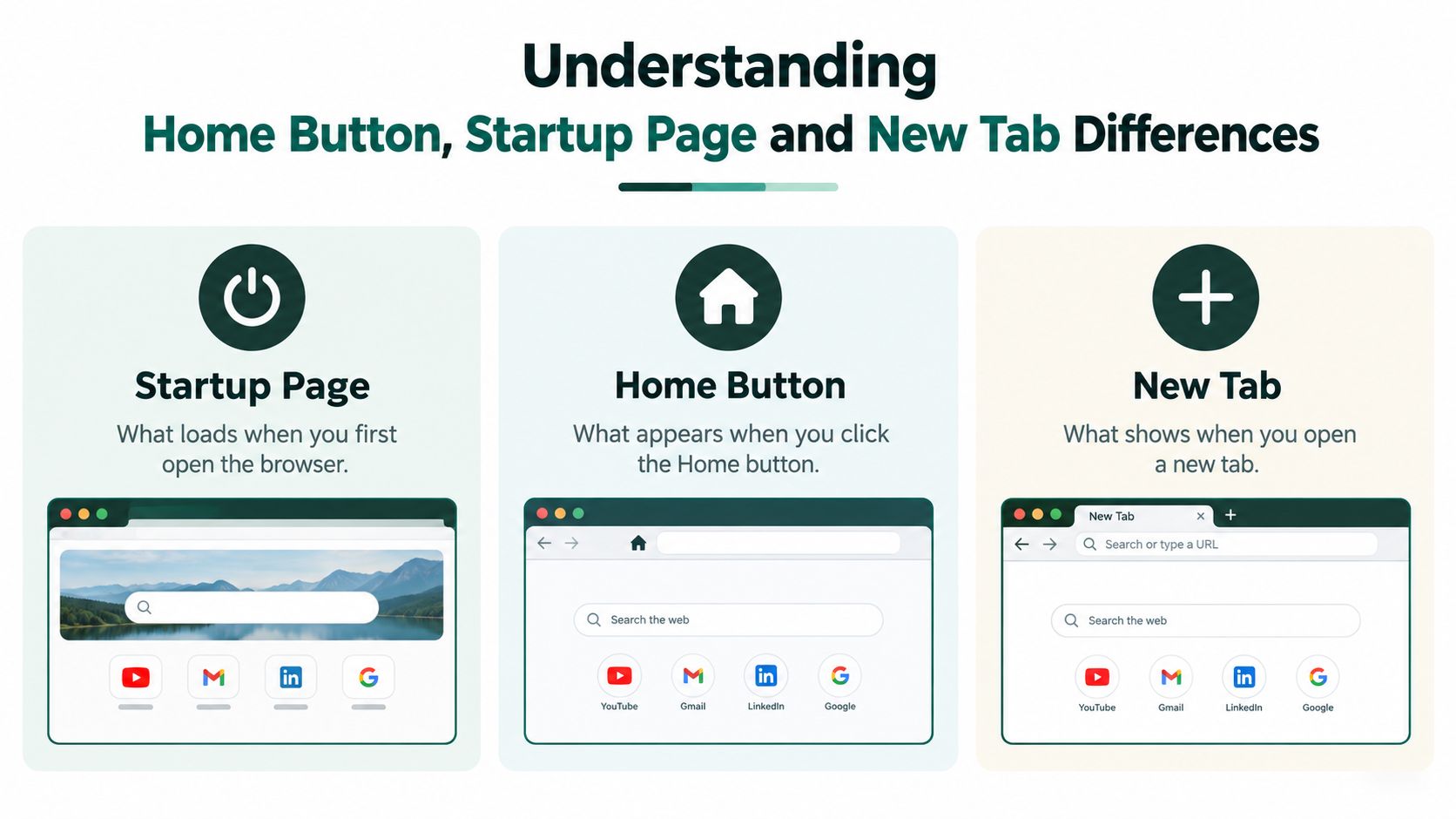
| Setting | What It Controls | Best Use for Google |
|---|---|---|
| Startup page | What loads when you first open the browser | Choose Google if every browser session should begin with search |
| Home button | What appears when you click the house icon | Choose Google for a deliberate return point while browsing |
| New Tab | What shows when you open a new tab | Choose Google if each new tab should start with search |
Choose based on your habit
If you open the browser to search immediately, set Google as a startup page. If you browse for a while and regularly need to return to search, set the Home button instead. If you create new tabs constantly and don't want shortcuts, news, or recommendations, consider a New Tab solution.
A custom URL is useful when you want a specific Google experience. For example, you might use for the standard homepage or a regional address such as if that is the version you normally use. Keep in mind that a New Tab page may be controlled by the browser or an extension, so a homepage change alone won't override it.
Practical rule: Set startup and Home separately, then test New Tab on its own. Changing one toggle isn't proof that all three surfaces changed.
How to Set a Custom Home Page Google on Desktop Browsers
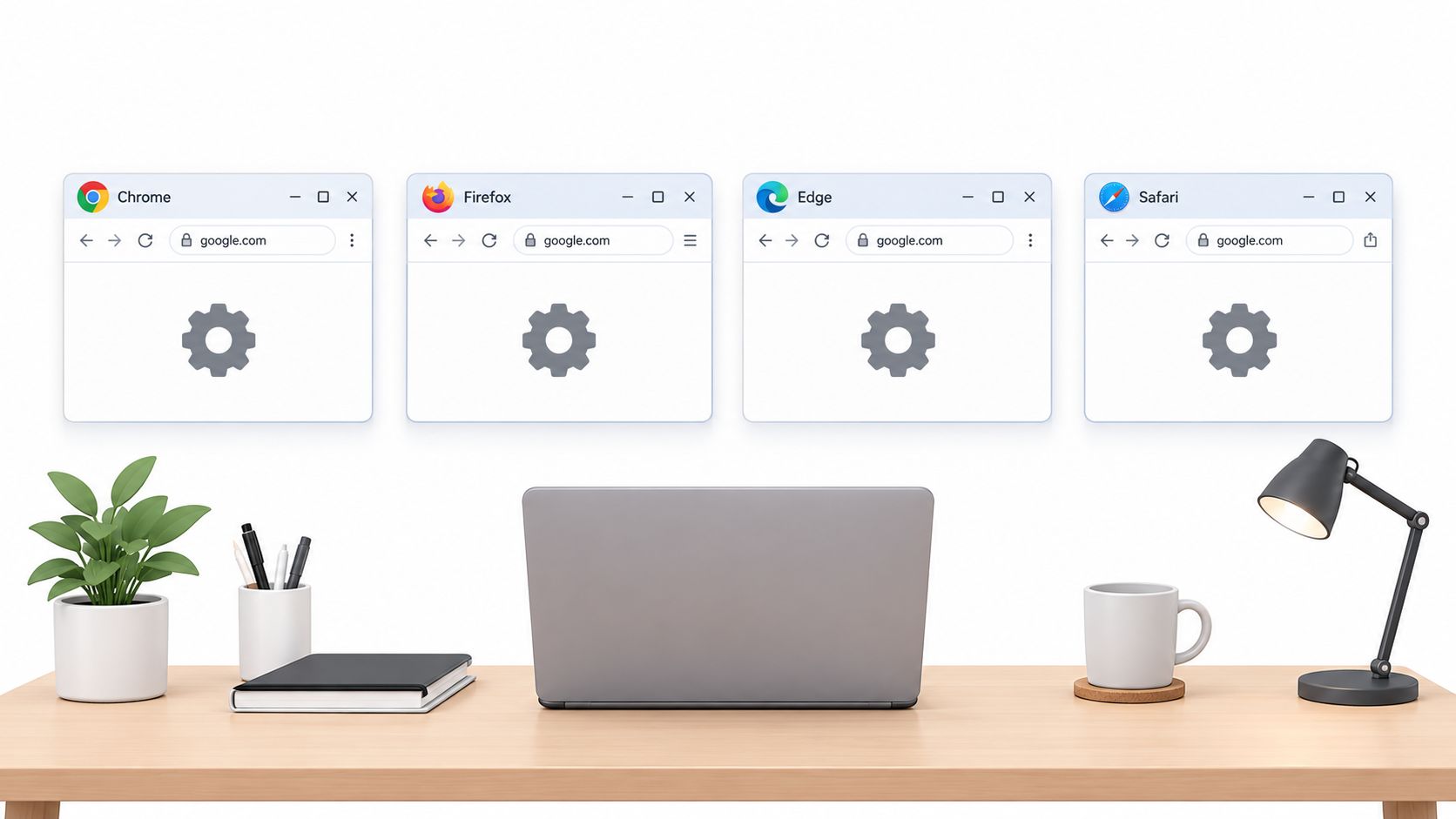
Desktop browsers put the relevant controls in different menus, but the process is consistent: open settings, find the homepage or startup area, enter the Google URL, and test the result.
Google Chrome
- Select the three-dot menu in the upper-right corner.
- Choose Settings.
- Open On startup.
- Select Open a specific page or pages.
- Choose Add a new page, enter ` and save it.
To configure the Home button, open Appearance in the same Settings area. Turn on Show home button, choose the custom page option, and enter the Google address. Chrome may show the Home button beside the address bar after you enable it.
Chrome's New Tab page is separate. Chrome doesn't provide a standard setting that replaces every New Tab with an arbitrary URL, so you may need a carefully chosen extension if that behavior is essential. Review the extension's permissions and publisher before installing it.
Mozilla Firefox
- Open the application menu with the three horizontal lines.
- Select Settings, then Home.
- Under Homepage and new windows, choose Custom URLs.
- Enter `
- Under New tabs, select the option that matches your preferred Firefox experience.
Firefox lets you use the same address for the homepage and new windows, but the New Tab control can remain separate. If Firefox restores your previous session, review the startup behavior under General and decide whether restored tabs should take priority over your chosen homepage.
Microsoft Edge
- Select the three-dot menu.
- Open Settings.
- Choose Start, home, and new tabs.
- Under the startup setting, select the option to open a specific page.
- Add `
In the same area, enable the Home button and set it to a custom URL. Edge's New Tab page is managed independently and may include Microsoft content, shortcuts, or a custom layout. Use Edge's New Tab customization controls if you want to reduce that content, or use a suitable extension when you need a direct Google URL.
Safari on macOS
Safari uses a simpler arrangement:
- Open Safari and select Safari in the macOS menu bar.
- Choose Settings, then General.
- In Homepage, enter `
- Set New windows open with to Homepage if you want Google when a new window opens.
- Set New tabs open with to Homepage if you want Google for new tabs.
Safari's search engine is a different preference. If the address bar should use Google for searches, change the Search setting separately. To verify the setup, quit Safari fully, reopen it, click the Home button if visible, and create a new tab. Test each action instead of assuming one setting controls the others.
Customizing Google on Mobile and New Tab Pages
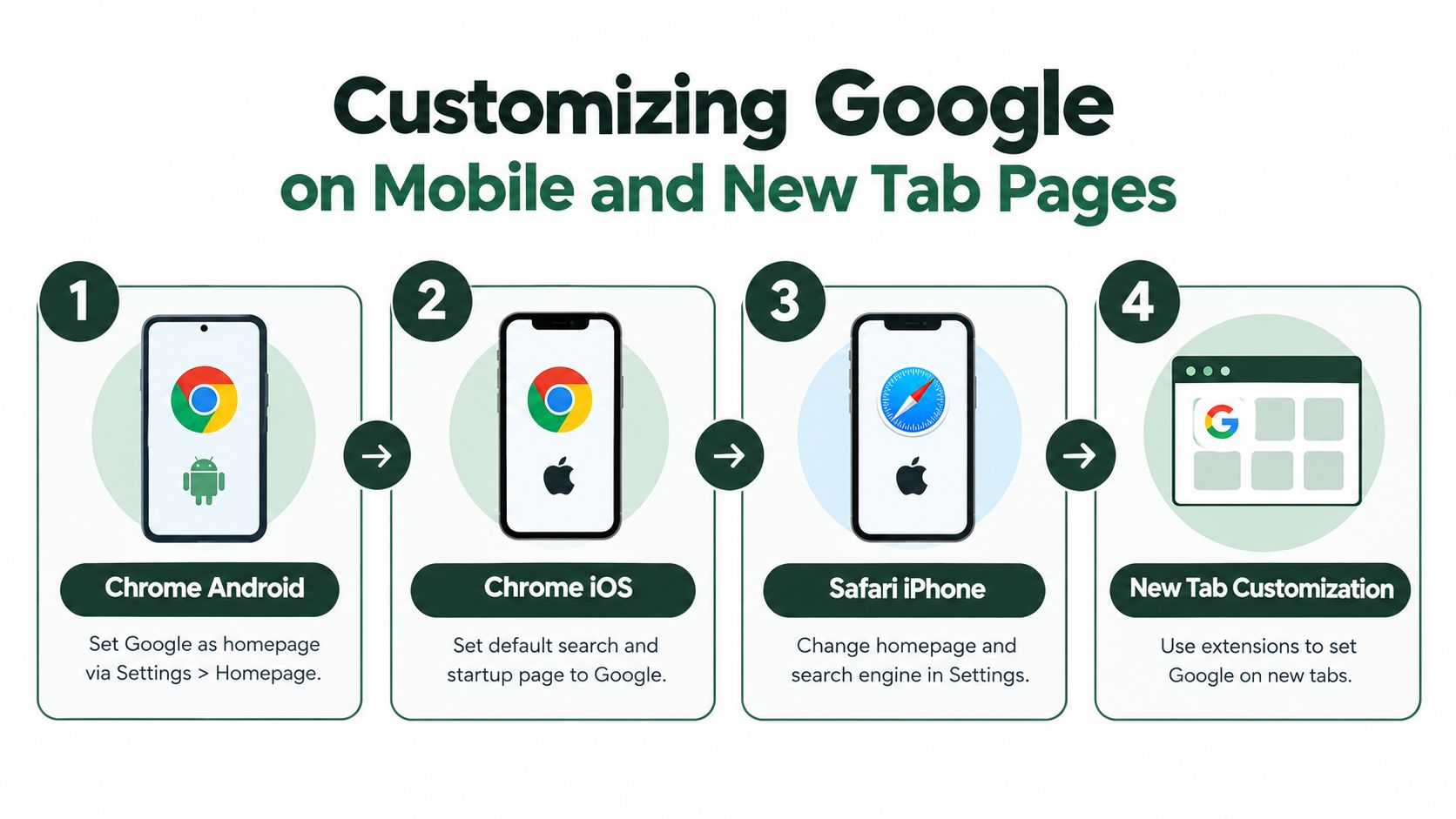
Mobile browsers give you less control than desktop browsers, and the controls differ between Android and iPhone. Start by deciding whether you want Google as a homepage, your default search engine, or the page shown in a new tab. Those choices may not be available together on every mobile browser.
Chrome on Android
Chrome for Android typically exposes homepage controls from its menu:
- Open Chrome and tap the three-dot menu.
- Select Settings.
- Open Homepage.
- Turn on the homepage option and enter ` if Chrome offers a custom address field.
- Return to a webpage and tap the Home icon to test it.
The exact available options can vary with the Chrome version and device configuration. The browser's New Tab surface may also have its own customization options, including a background choice. Recent guidance identifies a custom background option in Chrome for Android's homepage or New Tab customization surface, but a background doesn't automatically turn the page into a fully custom dashboard.
Chrome on iPhone and iPad
Chrome on iOS handles search and browsing preferences through its own app settings:
- Open Chrome and tap the three-dot menu.
- Choose Settings.
- Open Search Engine and select Google.
- Review the startup and New Tab behavior available in your installed version.
Apple's platform rules mean Chrome on iOS doesn't mirror every desktop control. If you need a specific Google URL every time, save it as a Home Screen shortcut or bookmark, then use that shortcut as your direct entry point.
Safari on iPhone
Safari's default search engine is managed through iOS settings. Open Settings, choose Apps, select Safari, and review the search engine option. Safari on iPhone doesn't offer the same desktop-style homepage controls, so adding Google to your Home Screen can be the most predictable shortcut.
For teams creating pages that must work well on smaller screens, mobile-first page creation with Landra provides a separate perspective on designing mobile experiences. That isn't a replacement for browser settings, but it helps explain why a page that looks fine on a laptop can feel crowded on a phone.
New Tab customization
Desktop extensions can replace a New Tab page with Google, a blank page, or a personal dashboard. Choose extensions carefully, because they can read browsing-related data depending on their permissions. On mobile, built-in browser settings and Home Screen shortcuts are usually safer and more dependable than trying to reproduce a desktop extension setup.
Tips to Make Your Custom Google Home Page More Useful
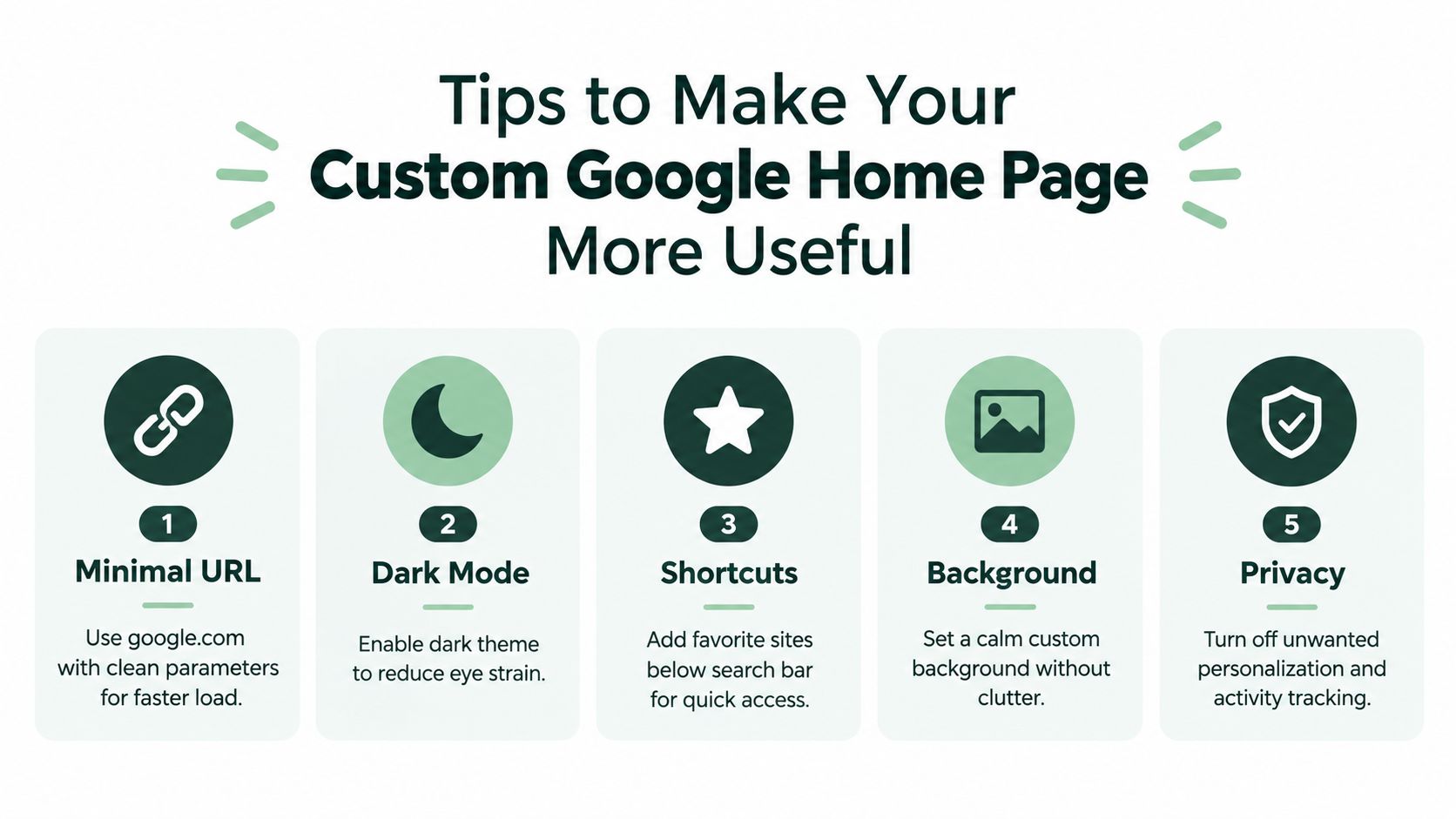
A Google homepage works best when it removes friction instead of adding decoration. Start with the cleanest URL that matches your needs, then add only the controls you'll use. A regional Google domain can make sense for local results, while the standard Google address keeps the setup simple.
Keep the first view focused
Avoid turning the start page into a crowded dashboard of feeds, animated backgrounds, and unnecessary widgets. Google's landing-page data measured across 41,000 pages and 464 million visits between July 2023 and July 2024 found a median conversion rate of 6.6%, while pages at or above 10% were classified as strong performers in that dataset, as reported in this landing-page statistics analysis. Those figures describe landing pages, not browser homepages, but the usability lesson transfers: clear pages make the next action easier to find.
For a personal Google page, that next action is usually the search box. Consider these adjustments:
- Use a minimal URL: Avoid adding parameters you don't understand or no longer need.
- Choose a calm background: A simple image can personalize the page without competing with search.
- Add deliberate shortcuts: Pin only sites you visit often, such as a calendar, task manager, or work portal.
- Review accessibility: Use readable contrast, browser zoom, and a theme that works comfortably for long sessions.
- Protect privacy: Remove personalization or activity features you don't want, and check extension permissions.
Speed deserves attention before visual polish. Google's mobile speed research reports that 53% of mobile visitors leave a page taking longer than 3 seconds to load, while the cited benchmark's average fully loaded mobile landing page took 22 seconds. The same source reports that a 100-millisecond mobile speed improvement increased retail conversions by 8.4% and average order value by 9.2% across 37 brand sites and more than 30 million sessions, detailed in this mobile landing-page performance research. These are retail landing-page findings, not a promise about your browser homepage, so use them as a reason to test on a real phone rather than as a guaranteed homepage result.
If you manage a website or campaign page, practical LCP and INP fixes can help you investigate loading and interaction issues. For everyday browsing, the simplest improvement is usually to remove unnecessary extensions and keep the first screen lightweight.
Troubleshooting Common Problems and Final Checklist
A homepage that resets doesn't always mean the browser ignored you. Extensions can change startup behavior, synchronization can restore another device's preferences, and an employer or school can lock settings through browser policy. Check the cause before repeatedly entering the same URL.
Match the symptom to the fix
- Google appears after clicking Home but not at launch: Review the startup setting separately from the Home button.
- Google opens at launch but New Tab still shows another page: Check New Tab customization or disable the extension controlling it.
- Your choice disappears after restarting: Temporarily disable homepage-related extensions and check whether browser sync is replacing the local setting.
- The setting is greyed out: A managed device may be enforcing a policy. Contact the administrator rather than trying to bypass it.
- The page looks unfamiliar: Confirm the address begins with the Google domain you intended, then remove suspicious extensions and reset browser settings if necessary.
Before you reset: Save bookmarks and review saved passwords or sync preferences. A reset can remove custom settings you still need.
Run this final check:
- Close every browser window.
- Reopen the browser and confirm the startup page.
- Click the Home button and confirm its destination.
- Open a New Tab and check whether its behavior matches your choice.
- Repeat the test after syncing or updating the browser.
If you need broader guidance for publishing, marketing, or page-related questions, Landra's advertorial help articles offer additional resources. The important point is simple: a custom Google setup sticks when you test each browser surface independently.
Landra creates editable advertorials, listicles, and pre-sell landing pages from a product or brand URL, with publishing options for Shopify, Webflow, a Landra URL, or HTML. Visit Landra to create a mobile-first page without starting from a blank canvas.