
September was a busy month for Landra. We shipped a new listicle template, a faster way to build a page from an avatar, and better tools for people who send traffic into GoHighLevel and Shopify. Here's everything that's new since the August release notes.
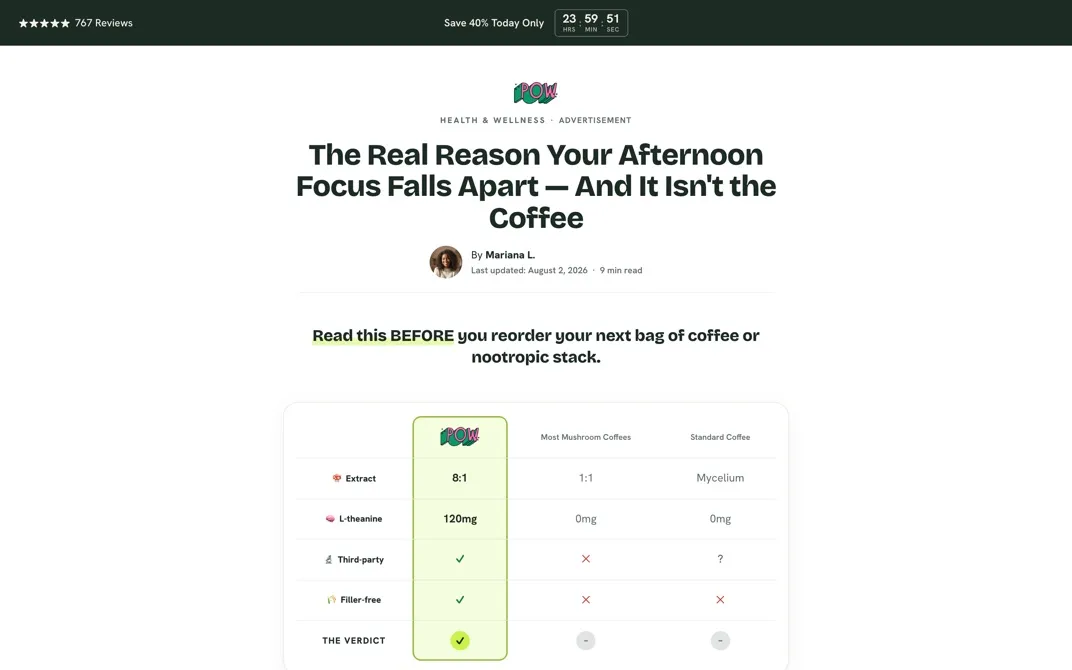
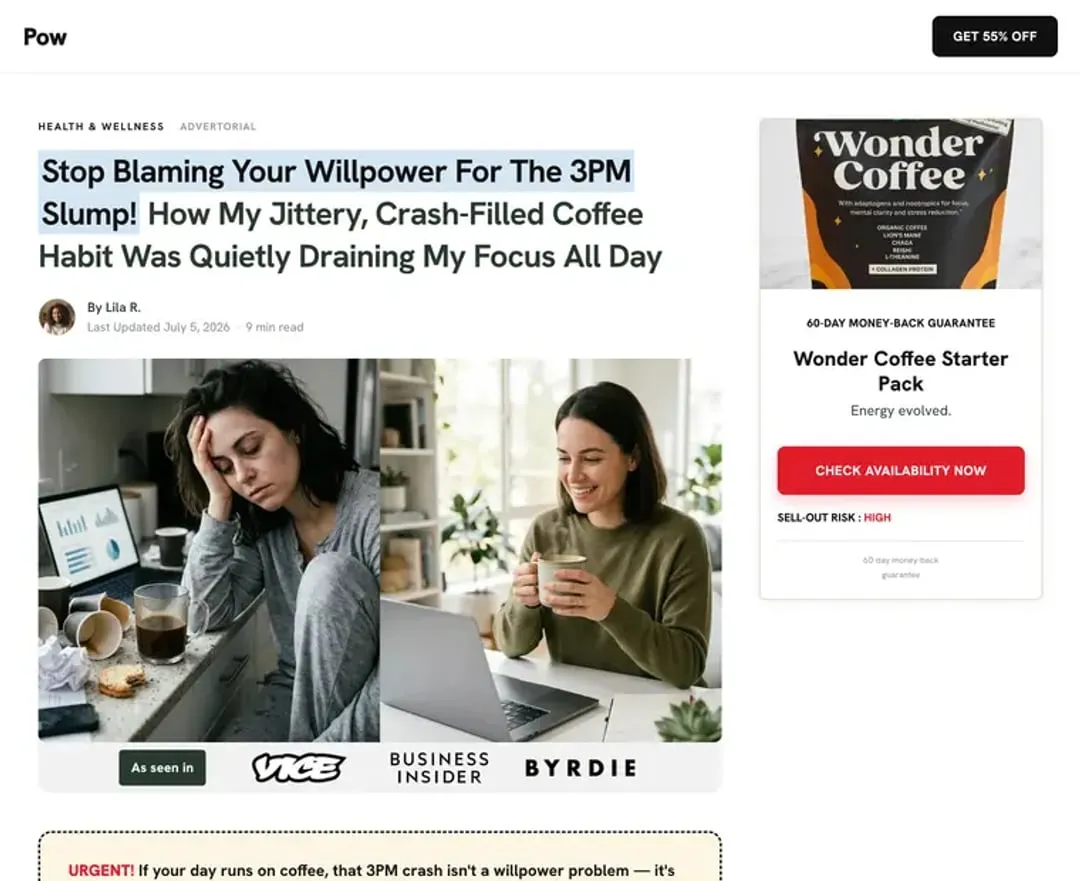
The Problem-Solution Listicle template
This one is a little different from every other template we have. One of our customers told us they're spending six figures on this format, so we built it into Landra.
Here's how it works:
- The page opens with a question your customer is already asking.
- Each numbered item names a problem they have.
- Right under it, a short answer shows how your product solves it.
It also carries a social comment thread and a sticky button that grows as you scroll. It's an "ugly" template on purpose. It reads like content, not like an ad, and it's always problem-led.
You'll find it in the template picker as the last listicle, marked Pro and New. It's on Pro and Pro+, and everyone can use it during the free trial. If you want the thinking behind problem-first pages, our guide to writing a high-converting listicle covers it.
Quick Builder: build a page from an avatar in the background
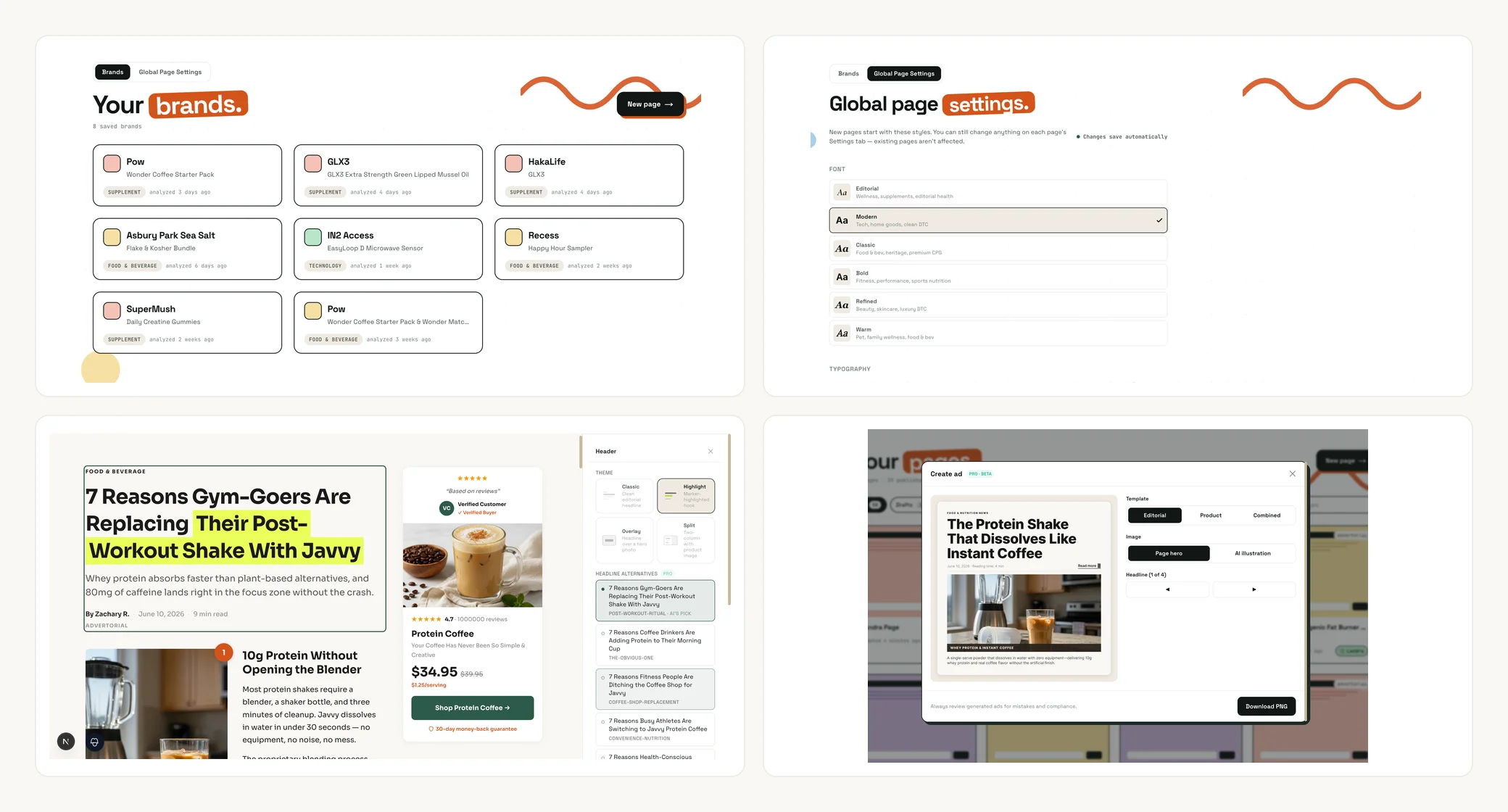
When Landra recommends an avatar for your brand, open it from Recommended for you on your dashboard and hit Generate a page for this avatar. You now get two options: Quick generate (about 30 seconds of your time) or the full builder.
Quick generate asks three things:
- Format: advertorial or listicle. Listicles also ask for a length (5 to 7, 7 to 9, or 9 to 12 items) and an approach (product-led or problem-led).
- Template.
- Images, including AI-generated images on Pro.
Then you hit Generate my page and go do something else. A card on your dashboard shows the build as Generating, then Finished, and we email you when the page is ready. It counts as one page from your monthly plan, the same as any other build. One Quick Builder page runs at a time per account.
GoHighLevel forms open in a popup
If you send traffic into a GoHighLevel form, it no longer has to leave your page. Point any button or link at your GoHighLevel form, then open Settings in the editor and turn on Open forms in a popup. The form opens over your page instead of in a new tab.
You can design the popup too: a heading and subheading, alignment, width, background, the close button, and a Fit to form option that sizes the popup to the form. Preview popup shows it live on the canvas while you edit.
If your agency runs GoHighLevel on its own domain (like link.youragency.com), add that domain under Form domains in Global page settings. Landra accepts the bare domain, a form link, or the whole embed code. Up to 10 domains per account, and GoHighLevel's own domains already work. The same domains also make GoHighLevel forms work inside a Custom Code block.
Links that scroll to a section
Every link field in the editor now has a Scroll to a section on the page switch. Turn it on, pick a section, and the button scrolls there instead of leaving the page. It works on the page-wide "Send every button to" setting too, so you can send every CTA on a long advertorial down to your offer in one step. If you later delete that section, the link field tells you so you can pick another.
Connect more than one Shopify store
You can now connect several Shopify stores to one Landra account. On the Integrations page, the Shopify card has a Connect another store button that runs the same install as your first store.
When you publish, you pick the store from a list. Each store shows whether it's connected or needs reconnecting, and you can publish the same page to more than one store (one copy per store). Teammates can connect stores to the account as well. If you're new to it, here's how the Shopify landing page generator works.
Image Size & Shape, per screen
The image settings card is now called Image Size & Shape, and almost every control in it can be set separately for desktop and mobile. Use the Applies to switch (Both, Desktop, Mobile) and then set the ratio, fit, corner radius, max width, alignment, and spacing. A wide image on desktop can be a tight square on mobile, without a second image or any custom code. Max height is the one setting that still applies to all screens, and its label says so.
Also shipped
- Edit social proof by asking. Improve with Landra and the Claude connector can now change the byline, rating score and count, review stars, stat numbers, and per-item listicle button links when you ask. Landra still won't invent numbers on its own.
- Optional byline on the Minimalist Premium Offer Listicle. Turn on Show author byline in the Header panel to add the author photo, name, date, and read time.
- Images that match your audience. Page images now follow the audience you pick when you build, including gender and age.
- Button and card colours on every template. The Button and Button Text swatches now work everywhere, and Card Fill is editable on every template.
- Offer card switches. The show and hide switches on the offer card now work on the Minimalist Premium and Risk-Free templates.
- Comparison tables for home brands. Pages for home-category brands can now include a comparison table.
- Safer saving in the editor. Clearer handling when the same page is edited in two places, and a guard against a failed save losing your changes.
What's next
Tell us what you want more of. Reply to any Landra email or message us in the app. And if you haven't built a page yet, the fastest way to see all of this is to paste your brand URL and let Landra build one.
Frequently asked questions
Which plans get the Problem-Solution Listicle?
It is a Pro template, so it is available on Pro and Pro+, and to everyone during the free trial. You will find it as the last listicle in the template picker, marked New.
Does Quick Builder use up a page from my plan?
Yes. A Quick Builder page counts as one page from your monthly plan, the same as a page built in the full builder. AI images are a Pro option in the Quick Builder steps. One Quick Builder page builds at a time per account.
How do I open a GoHighLevel form in a popup?
Point any button or link at your GoHighLevel form URL. Then in the editor, open Settings and turn on "Open forms in a popup" in the GHL form popup card. If your forms live on your own domain (like link.youragency.com), add it under Form domains first, then republish any page that uses it.
Is there a limit on how many Shopify stores I can connect?
There is no store limit. Connect another store from the Shopify card on the Integrations page. When you publish, you pick which store the page goes to. A page can live on several stores, with one copy per store.
Do the new image controls change my existing pages?
No. Existing images keep their current size and shape. The Applies to switch (Both, Desktop, Mobile) only matters when you change a setting, so you can now give an image a different ratio or width on mobile without touching desktop.